User Experience
At Verified, signup is what we do. We are experts in how to optimize onboarding flows to maximize conversion and give users the best possible experience. We've helped our customers onboard — and delight! — millions of new users. The user experience described in this guide is the result of countless hours of research, design, testing, and iteration by our team.
Our SDK implements this user experience, and we strongly recommend you use it. If you instead choose to use our API, we recommend you implement a user experience similar to this one.
Full details are below, but the basic user experience is:
- Enter and verify phone number
- (if necessary) Enter challenge (first name, birthday, or SSN4)
- Confirm autofilled info
This user experience may look complicated, and in some ways it is: achieving world class UX requires getting many small details right. But at its core, it's simple by design and takes only a few screens. Users complete 1-Click Signup in less than 10 seconds: try it yourself with a custom demo.
Flow Chart
 ↗️ Open in new tab (for easy zooming)
To implement this user experience yourself (which is only necessary if you choose the API integration type), without our SDK, you need to handle each action labeled Verified.
Screens and Components
Phone
 Header
Enter Your Phone Number
Consent Language
By entering your phone number, you agree that Verified (
{Brand Name}'s service provider) and its vendors may receive your personal info and autofill more info about you, including your social security number.
If your credential requests do not include SSN, "including your social security number" will be omitted.
- Muted color
- “Verified”:
- Hyperlinked to https://verified.inc
- Primary color
- Underlined
{Brand Name}: replaced with your brand name
 Phone
Phone
+1 (_ _ _) _ _ _ - _ _ _ _
- Primary and error colors
- Auto focused
- Opens numeric keyboard
- Accepts only digits
- Accepts OS autofill
- Validates US phone number
- Auto formats to +1 (NNN) NNN-NNNN (most common US format)
- Auto submits on 10 digits
 Powered by Verified
- Black and Green variant
"Powered By Verified" Graphic Variants
Powered by Verified
Black and Green:

White and Green:

Black:

White:

Gray:

1-Click Signup powered by Verified
Black and Green:

White and Green:

Black:

White:

Gray:

1-Click Health powered by Verified
Black and Green:

White and Green:

Black:

White:

Gray:

1-Click Login powered by Verified
Black and Green:

White and Green:

Black:

White:

Gray:

1-Click Verify powered by Verified
Black and Green:

White and Green:

Black:

White:

Gray:

1-Click Apply powered by Verified
Black and Green:

White and Green:

Black:

White:

Gray:

1-Click Access powered by Verified
Black and Green:

White and Green:

Black:

White:

Gray:

1-Click AutoFill powered by Verified
Black and Green:

White and Green:

Black:

White:

Gray:

 Opt Out
Sign Up Manually Instead
Takes user to Info screen in manual signup (edit) state.
- Muted color
 Error
Error
That phone number is invalid. Please try again.
Appears when phone number is invalid.
- Error color
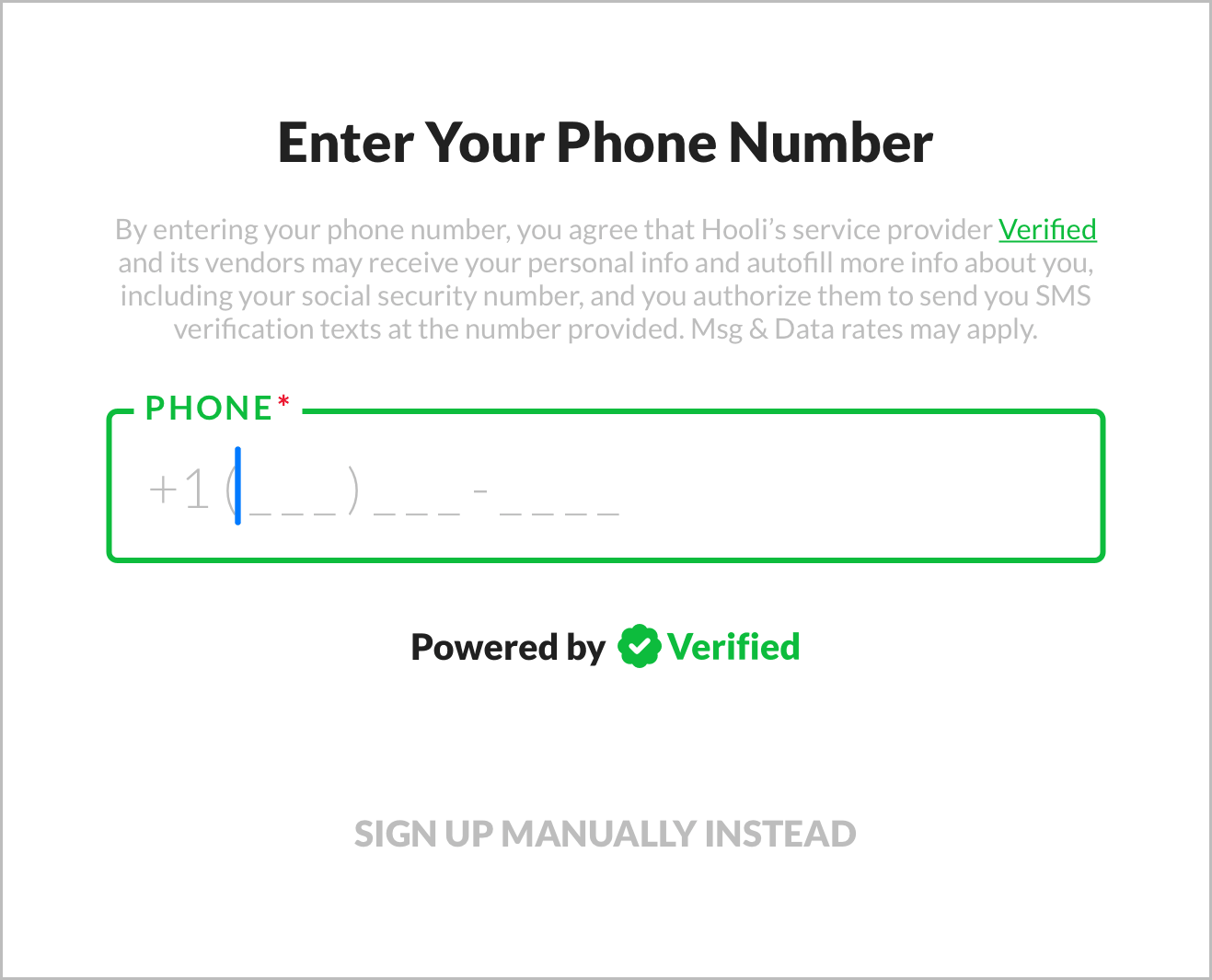 Starting State ↗️ Open in new tab
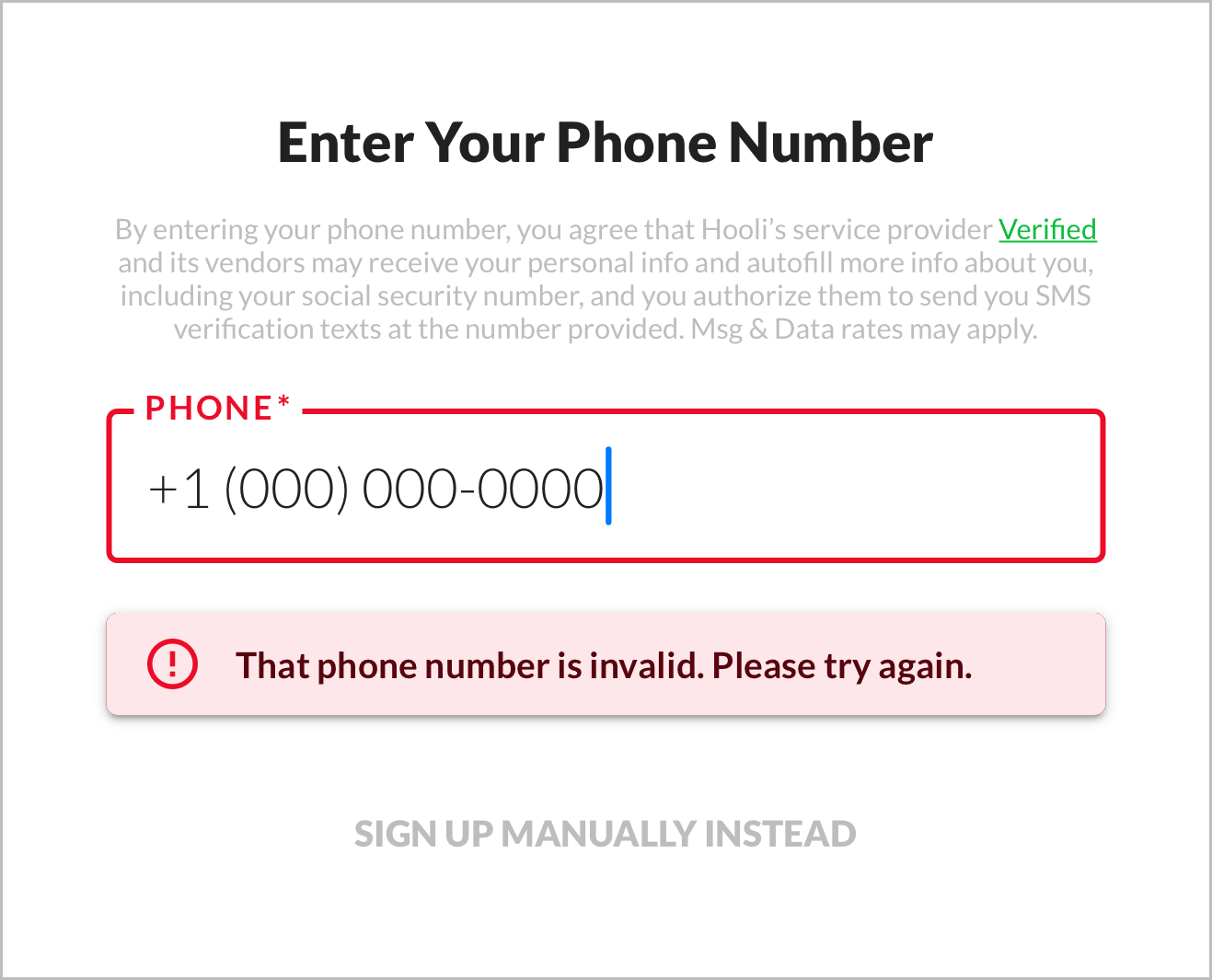 Error State ↗️ Open in new tab
Verification Code
Header
Verify Your Phone Number
Description
Enter the verification code we texted to
{phone}.
- New line before
{phone} - Bold
{phone}
Verification Code
- Primary and error colors
- Auto focused
- 6 separate boxes
- En dash (–) in between first and last 3 boxes, to indicate hypen in verification code sent by SMS, which is included for readability:
123-456
- Opens numeric keyboard
- Accepts only digits
- Accepts OS autofill
- Auto submits on 6 digits
Powered by Verified
- Black and Green variant
"Powered By Verified" Graphic Variants
Powered by Verified
Black and Green:
White and Green:
Black:
White:
Gray:
1-Click Signup powered by Verified
Black and Green:
White and Green:
Black:
White:
Gray:
1-Click Health powered by Verified
Black and Green:
White and Green:
Black:
White:
Gray:
1-Click Login powered by Verified
Black and Green:
White and Green:
Black:
White:
Gray:
1-Click Verify powered by Verified
Black and Green:
White and Green:
Black:
White:
Gray:
1-Click Apply powered by Verified
Black and Green:
White and Green:
Black:
White:
Gray:
1-Click Access powered by Verified
Black and Green:
White and Green:
Black:
White:
Gray:
1-Click AutoFill powered by Verified
Black and Green:
White and Green:
Black:
White:
Gray:
Edit
Edit Phone
Takes user back to phone input.
- Muted color
Resend
Resend Code
Sends another SMS with fresh verification code.
- Muted color
- Allows for at most 2 resends
Error
That code didn’t match. Please try again.
Appears when verification code is invalid or expired.
- Error color
Code Resent
We sent you a new verification code.
Appears when user clicks resend button.
- Primary color
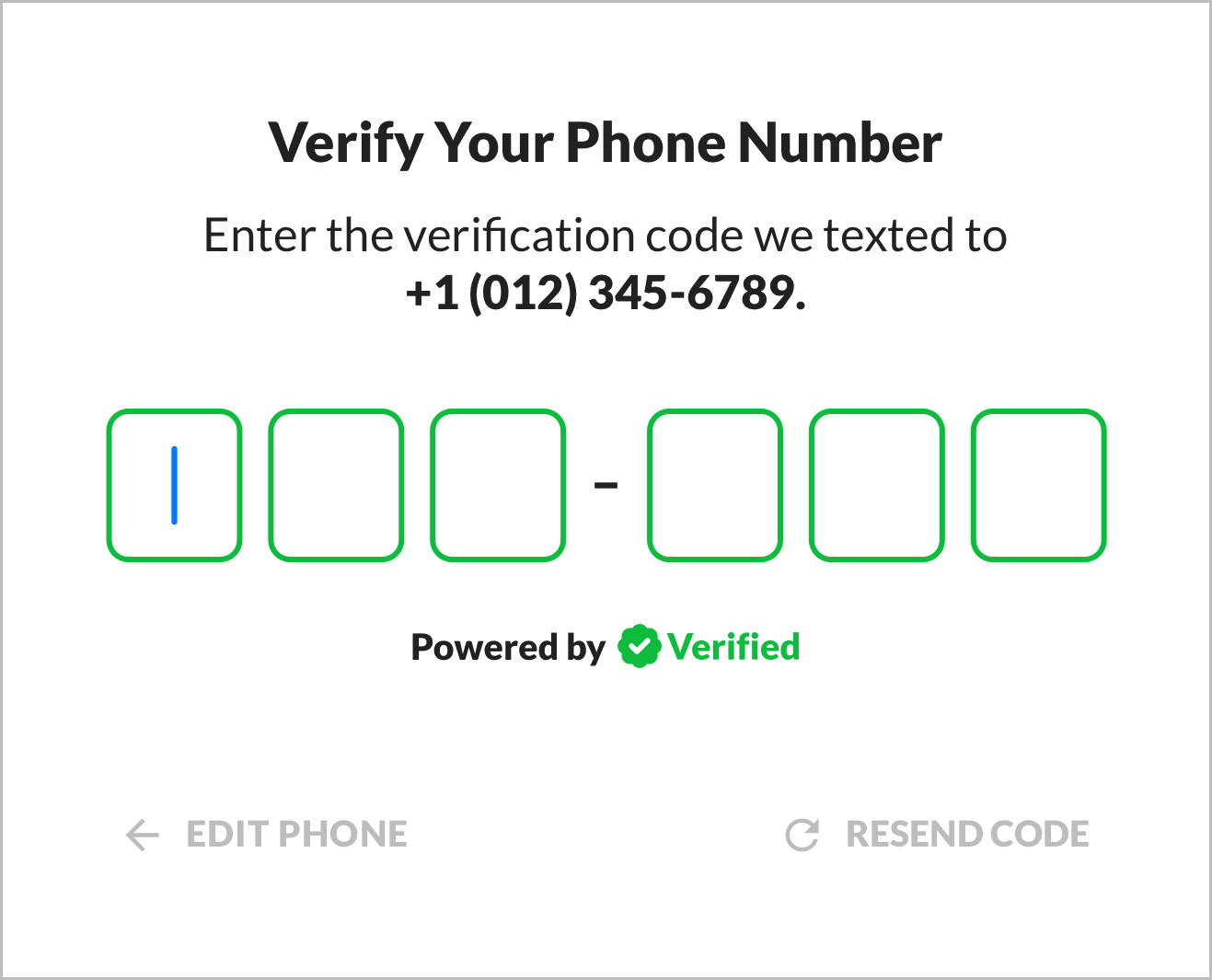 Starting State ↗️ Open in new tab
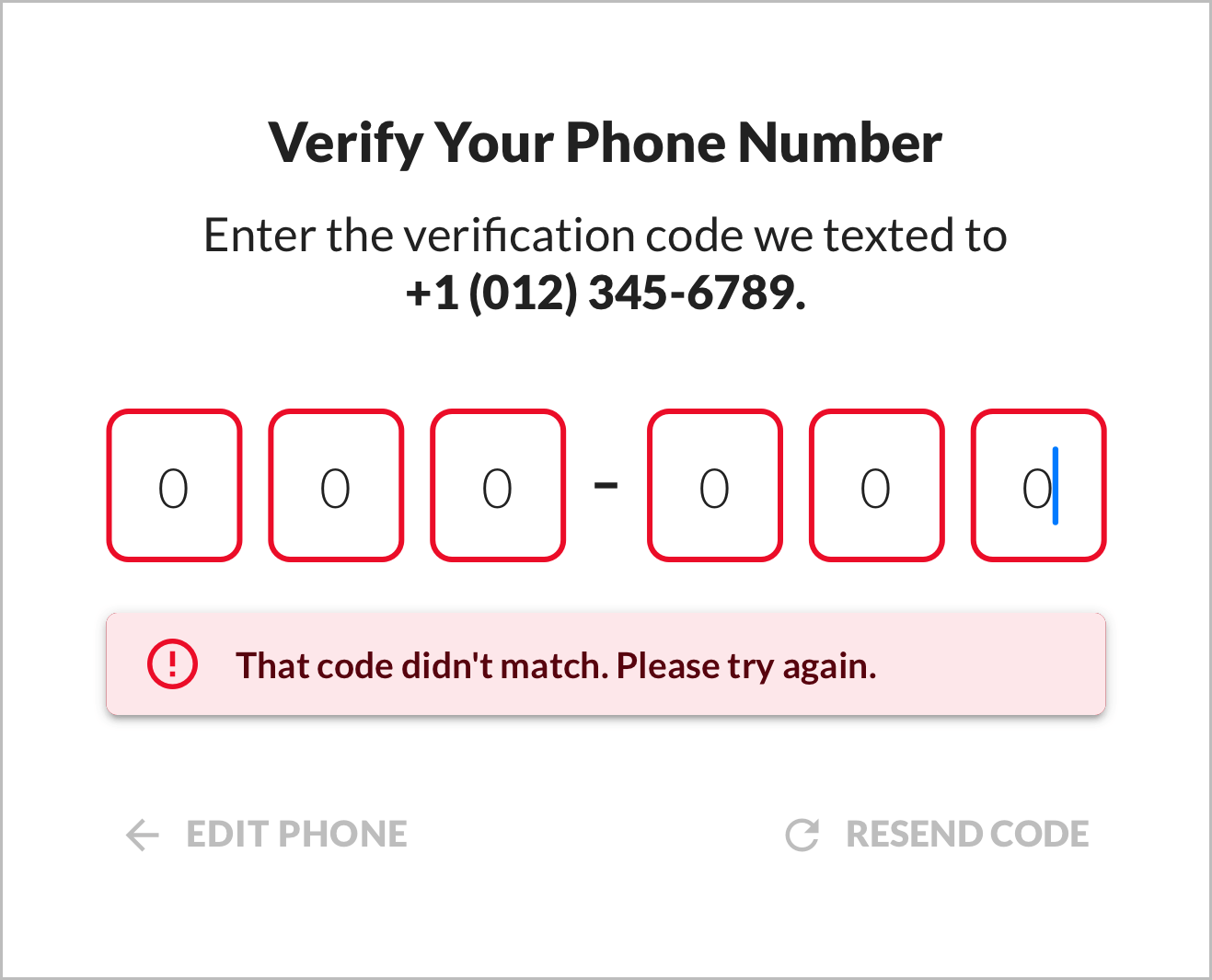 Error State ↗️ Open in new tab
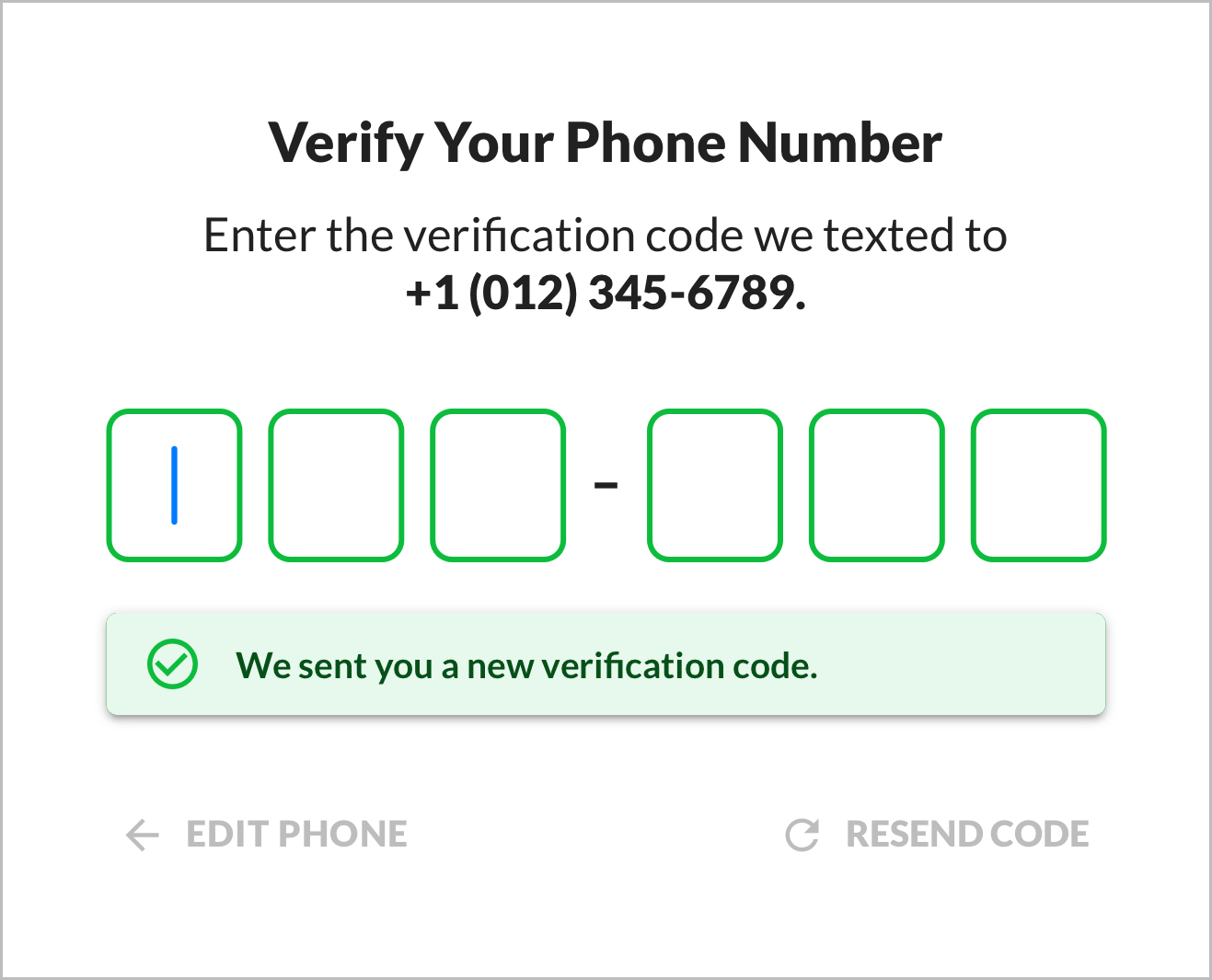 Resent Code State ↗️ Open in new tab
First Name
Header
Enter Your First Name
Description
Enter your first name, so we can verify you and autofill your info.
First Name
- Primary and error colors
- Auto focused
- Helper:
Legal first name (if important for your use case)
- Accepts OS autofill
- Submits on arrow button click or enter
Powered by Verified
- Black and Green variant
"Powered By Verified" Graphic Variants
Powered by Verified
Black and Green:
White and Green:
Black:
White:
Gray:
1-Click Signup powered by Verified
Black and Green:
White and Green:
Black:
White:
Gray:
1-Click Health powered by Verified
Black and Green:
White and Green:
Black:
White:
Gray:
1-Click Login powered by Verified
Black and Green:
White and Green:
Black:
White:
Gray:
1-Click Verify powered by Verified
Black and Green:
White and Green:
Black:
White:
Gray:
1-Click Apply powered by Verified
Black and Green:
White and Green:
Black:
White:
Gray:
1-Click Access powered by Verified
Black and Green:
White and Green:
Black:
White:
Gray:
1-Click AutoFill powered by Verified
Black and Green:
White and Green:
Black:
White:
Gray:
Error
That didn’t match our records. Please try again.
Appears when there's a first name mismatch error (OCE012).
- Error color
Continue
Continue Anyway
Appears if either of the following conditions are met:
- There have been 3 seconds of inaction (after error).
- The user tried a different value than the first value (and also got an error).
Takes user to manual signup.
If the user tries the same value again, auto continue them.
- Muted color
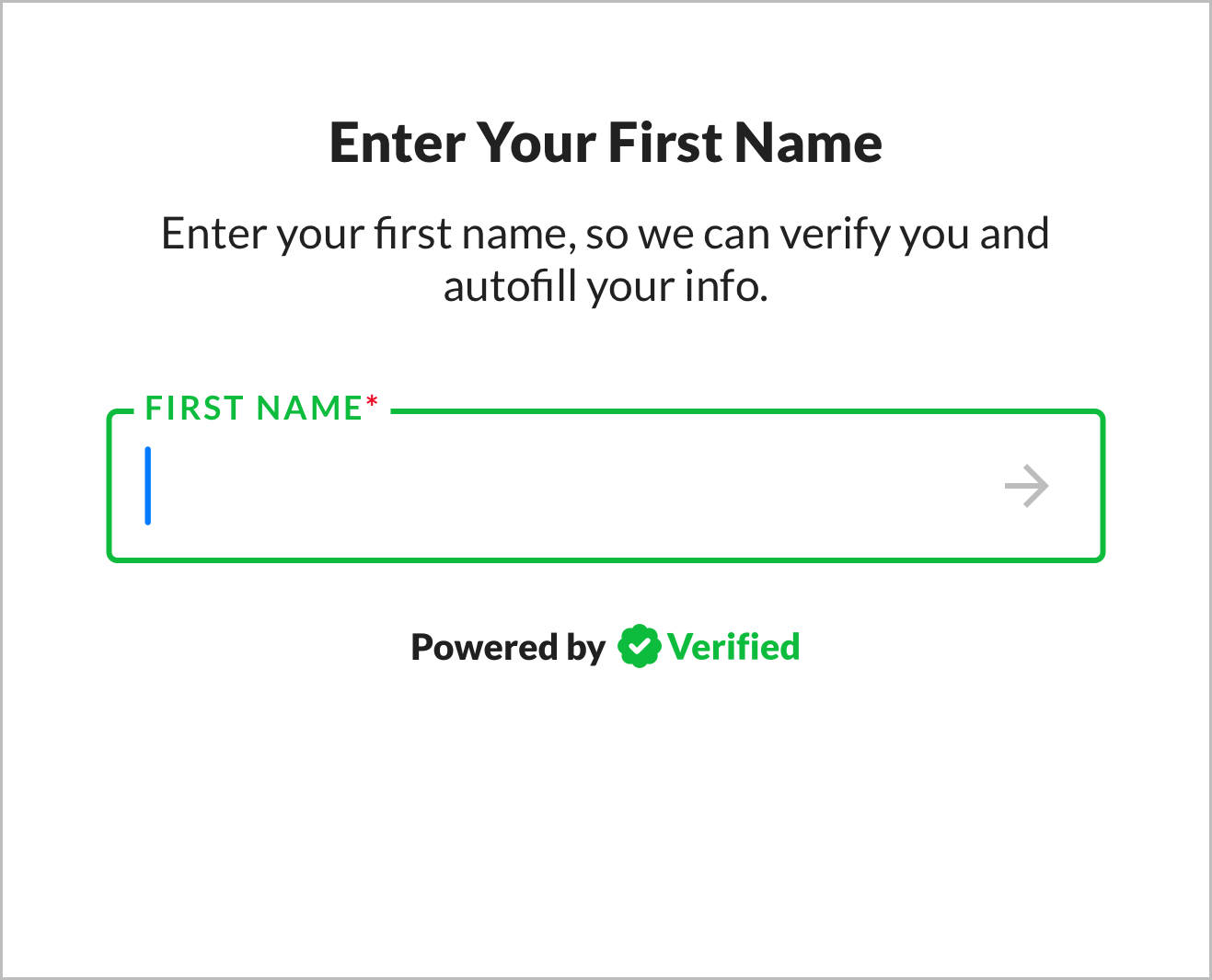 Starting State ↗️
 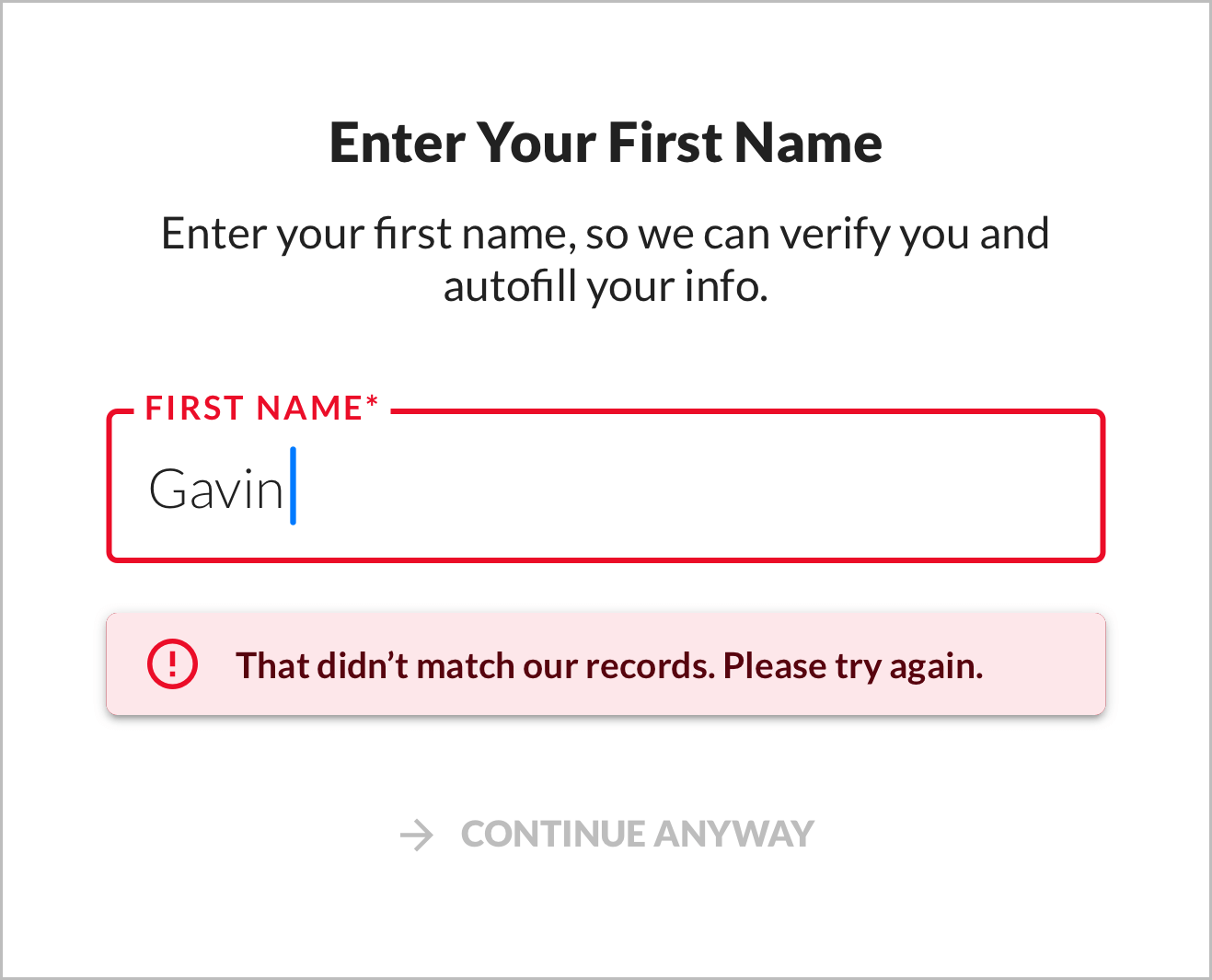 Error State ↗️
 Birthday
Header
Enter Your Birthday
Description
Enter your real birthday, so we can verify you and autofill your info.
Birthday
_ _ / _ _ / _ _ _ _
- Primary and error colors
- “Birthday” not “Birth Date” because the former is friendlier
- Auto focused
- Helper:
MM/DD/YYYY
- Calendar icon on right opens date picker (which defaults to 08/01/1989)
- Opens numeric keyboard
- Accepts only digits
- Accepts OS autofill
- Validates format
- Auto formats to MM/DD/YYYY (most common US format)
- Auto submits on 8 digits
Powered by Verified
- Black and Green variant
"Powered By Verified" Graphic Variants
Powered by Verified
Black and Green:
White and Green:
Black:
White:
Gray:
1-Click Signup powered by Verified
Black and Green:
White and Green:
Black:
White:
Gray:
1-Click Health powered by Verified
Black and Green:
White and Green:
Black:
White:
Gray:
1-Click Login powered by Verified
Black and Green:
White and Green:
Black:
White:
Gray:
1-Click Verify powered by Verified
Black and Green:
White and Green:
Black:
White:
Gray:
1-Click Apply powered by Verified
Black and Green:
White and Green:
Black:
White:
Gray:
1-Click Access powered by Verified
Black and Green:
White and Green:
Black:
White:
Gray:
1-Click AutoFill powered by Verified
Black and Green:
White and Green:
Black:
White:
Gray:
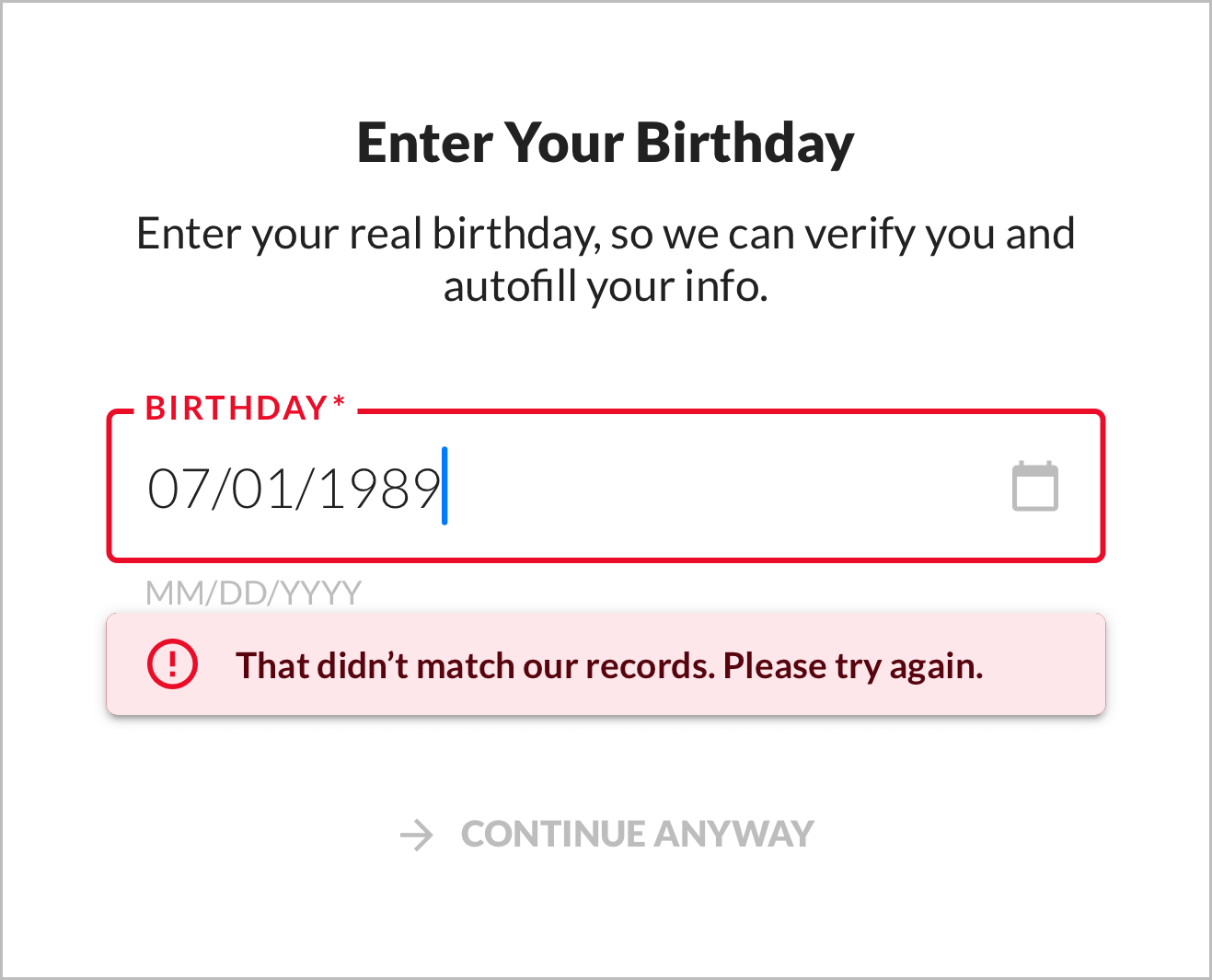
Error
That didn’t match our records. Please try again.
Appears when there's a birthday mismatch error (OCE012).
- Error color
Continue
Continue Anyway
Appears if either of the following conditions are met:
- There have been 3 seconds of inaction (after error).
- The user tried a different value than the first value (and also got an error).
Takes user to manual signup.
If the user tries the same value again, auto continue them.
- Muted color
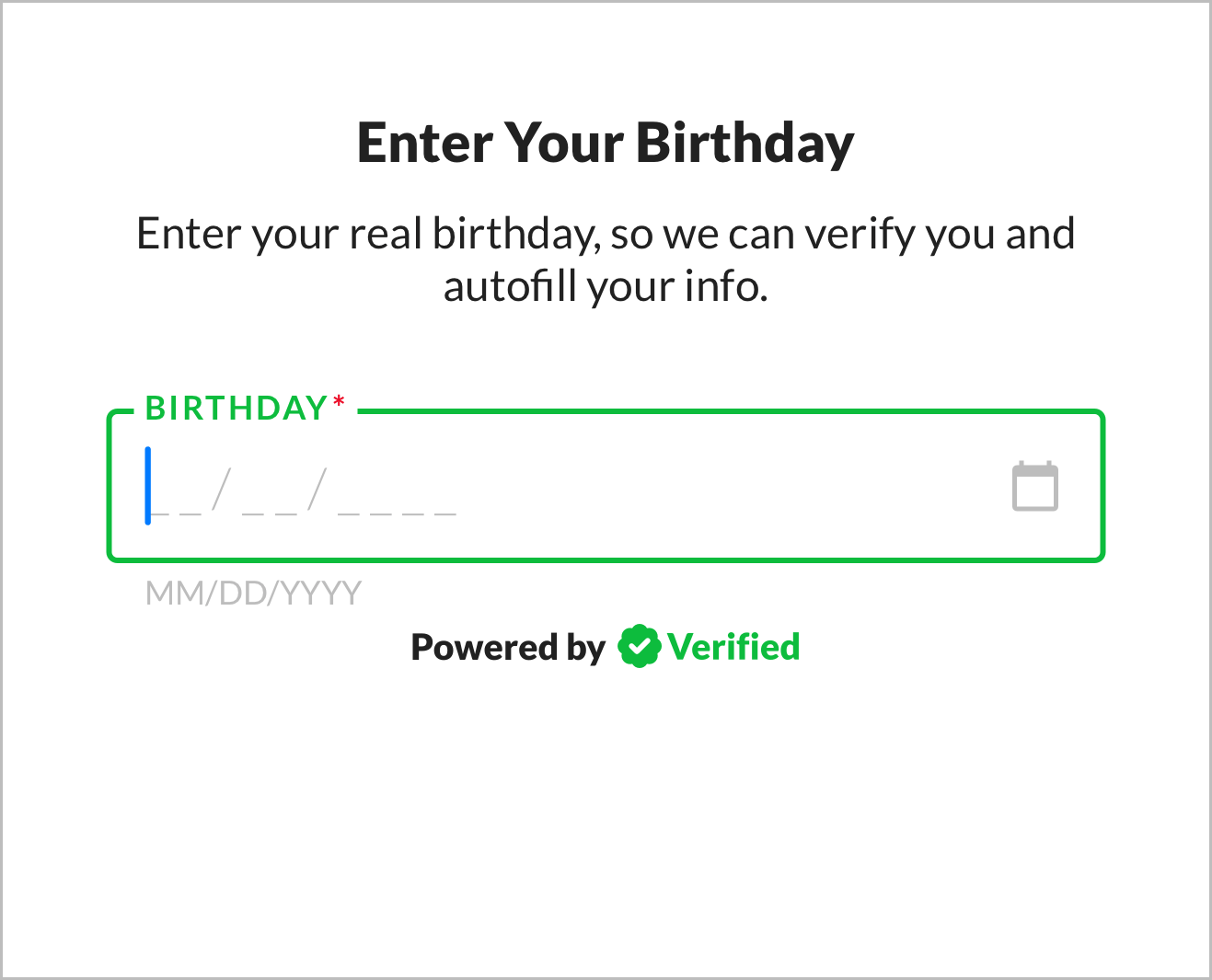 Starting State ↗️
  Error State ↗️
 SSN4
Header
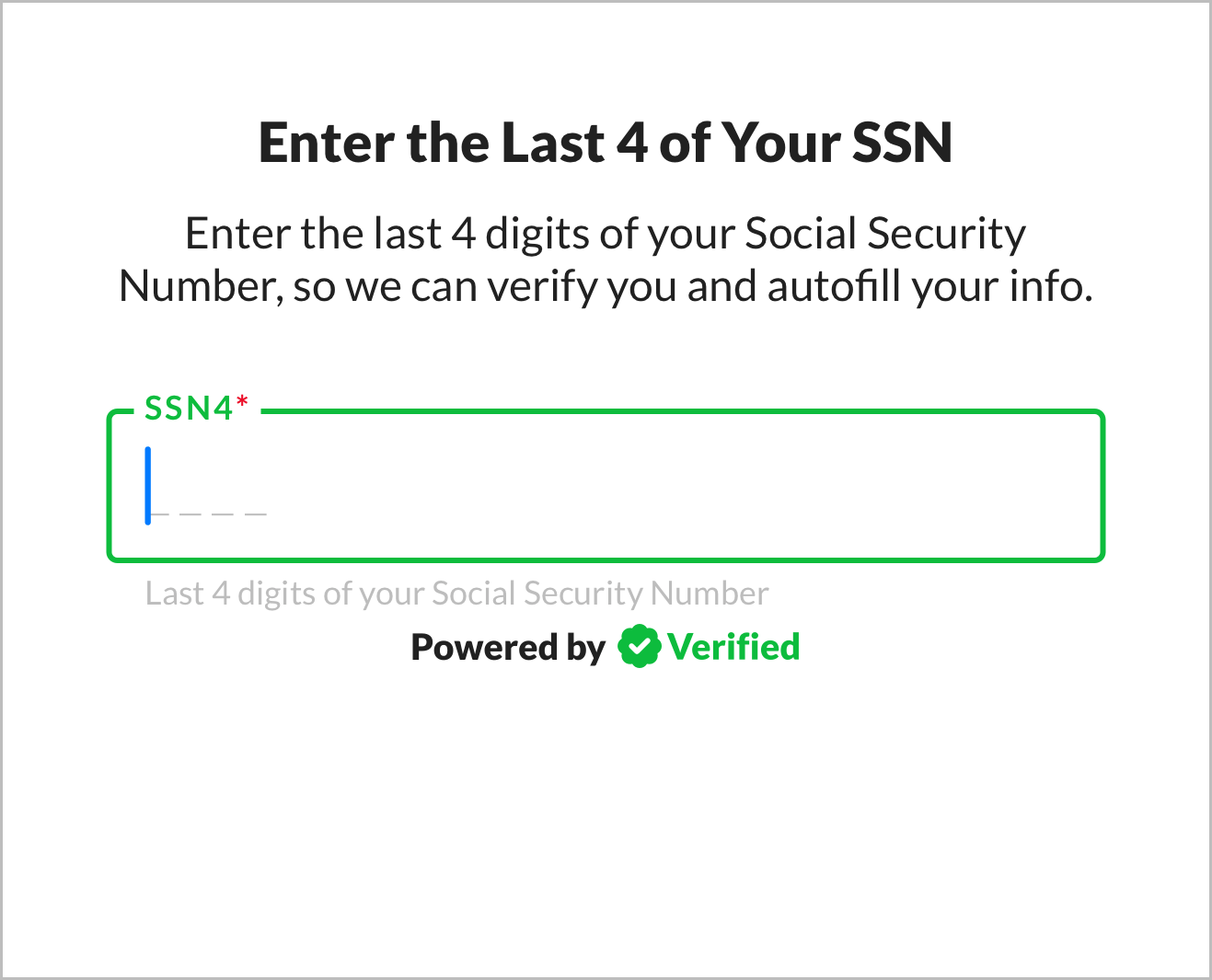
Enter the Last 4 of Your SSN
Description
Enter the last 4 digits of your Social Security Number, so we can verify you and autofill your info.
SSN4
_ _ _ _
- Primary and error colors
- Auto focused
- Helper:
Last 4 digits of your Social Security Number
- Opens numeric keyboard
- Accepts only digits
- Validates format
- Auto submits on 4 digits
- Auto focused
Powered by Verified
- Black and Green variant
"Powered By Verified" Graphic Variants
Powered by Verified
Black and Green:
White and Green:
Black:
White:
Gray:
1-Click Signup powered by Verified
Black and Green:
White and Green:
Black:
White:
Gray:
1-Click Health powered by Verified
Black and Green:
White and Green:
Black:
White:
Gray:
1-Click Login powered by Verified
Black and Green:
White and Green:
Black:
White:
Gray:
1-Click Verify powered by Verified
Black and Green:
White and Green:
Black:
White:
Gray:
1-Click Apply powered by Verified
Black and Green:
White and Green:
Black:
White:
Gray:
1-Click Access powered by Verified
Black and Green:
White and Green:
Black:
White:
Gray:
1-Click AutoFill powered by Verified
Black and Green:
White and Green:
Black:
White:
Gray:
Error
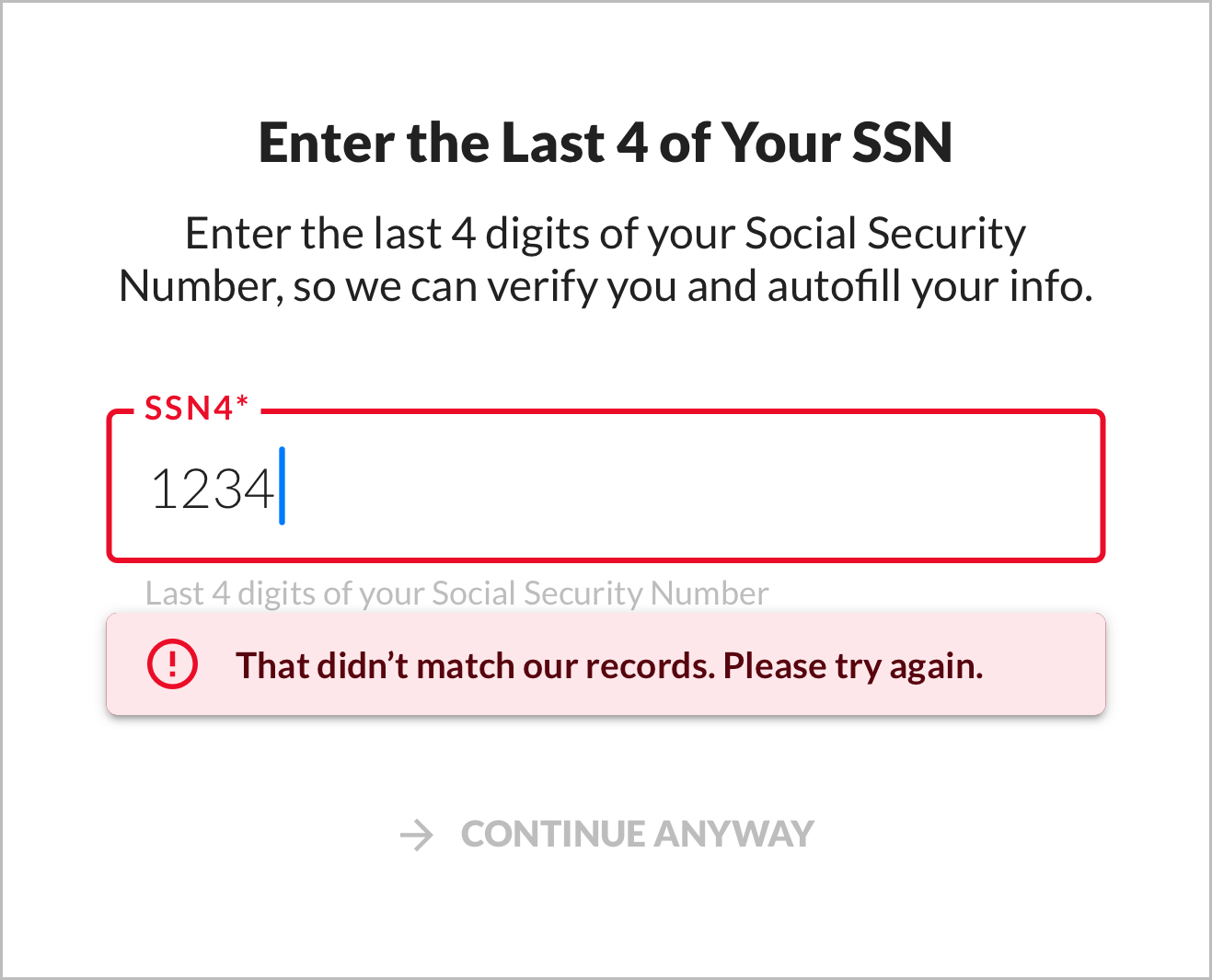
That didn’t match our records. Please try again.
Appears when there's a SSN4 mismatch error (OCE012).
- Error color
Continue
Continue Anyway
Appears if either of the following conditions are met:
- There have been 3 seconds of inaction (after error).
- The user tried a different value than the first value (and also got an error).
Takes user to manual signup.
If the user tries the same value again, auto continue them.
- Muted color
 Starting State ↗️
  Error State ↗️
 Info
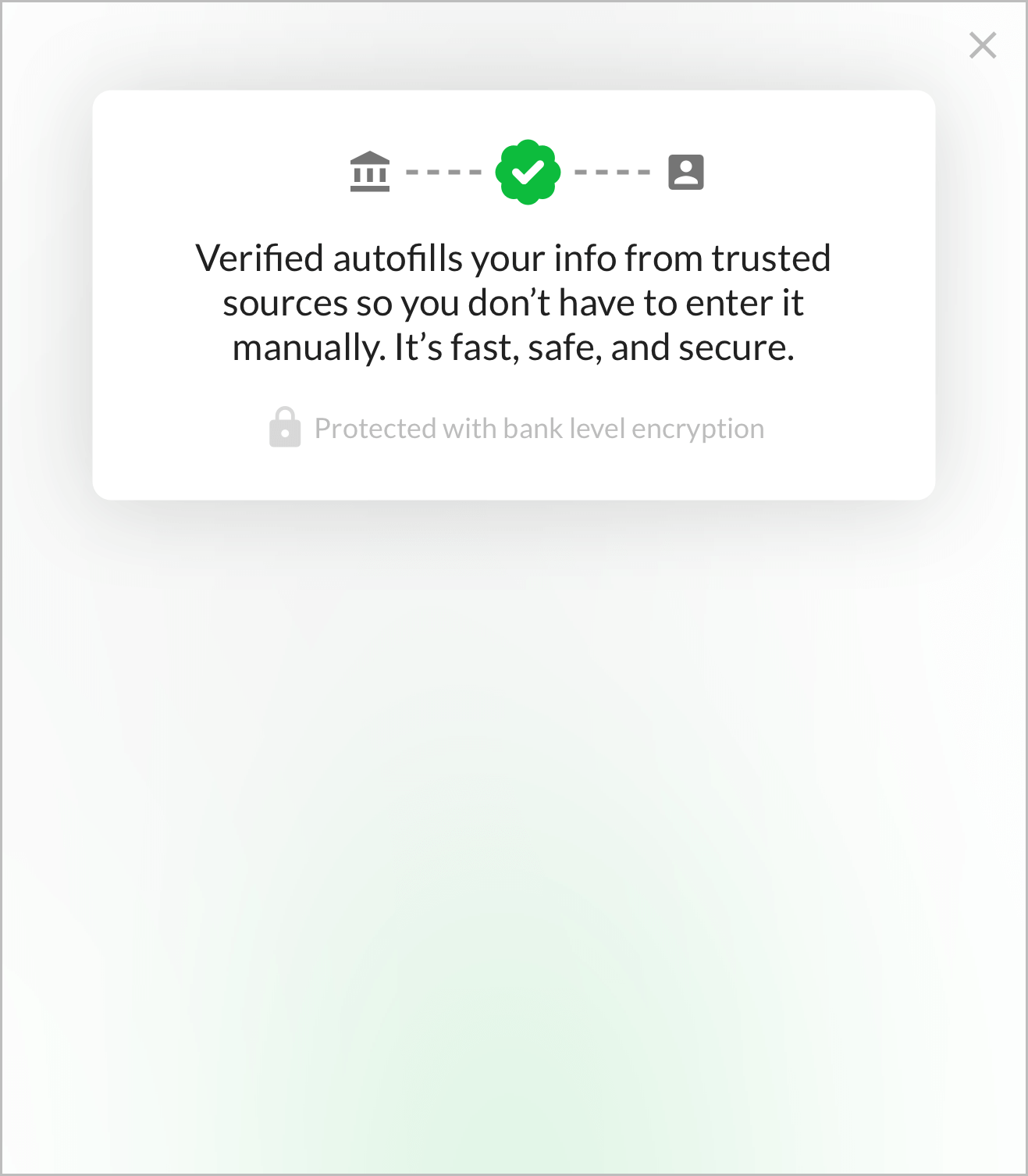
Open Modal
?
Opens informational modal.
- Muted color
Close Modal
X
Closes informational modal.
- Muted color
- Clicking anywhere outside the modal should also close it
 Informational
Verified autofills your info from trusted sources so you don’t have to enter it manually. It’s fast, safe, and secure.
- Graphic
- Lock icon with:
Protected with bank level encryption
Header
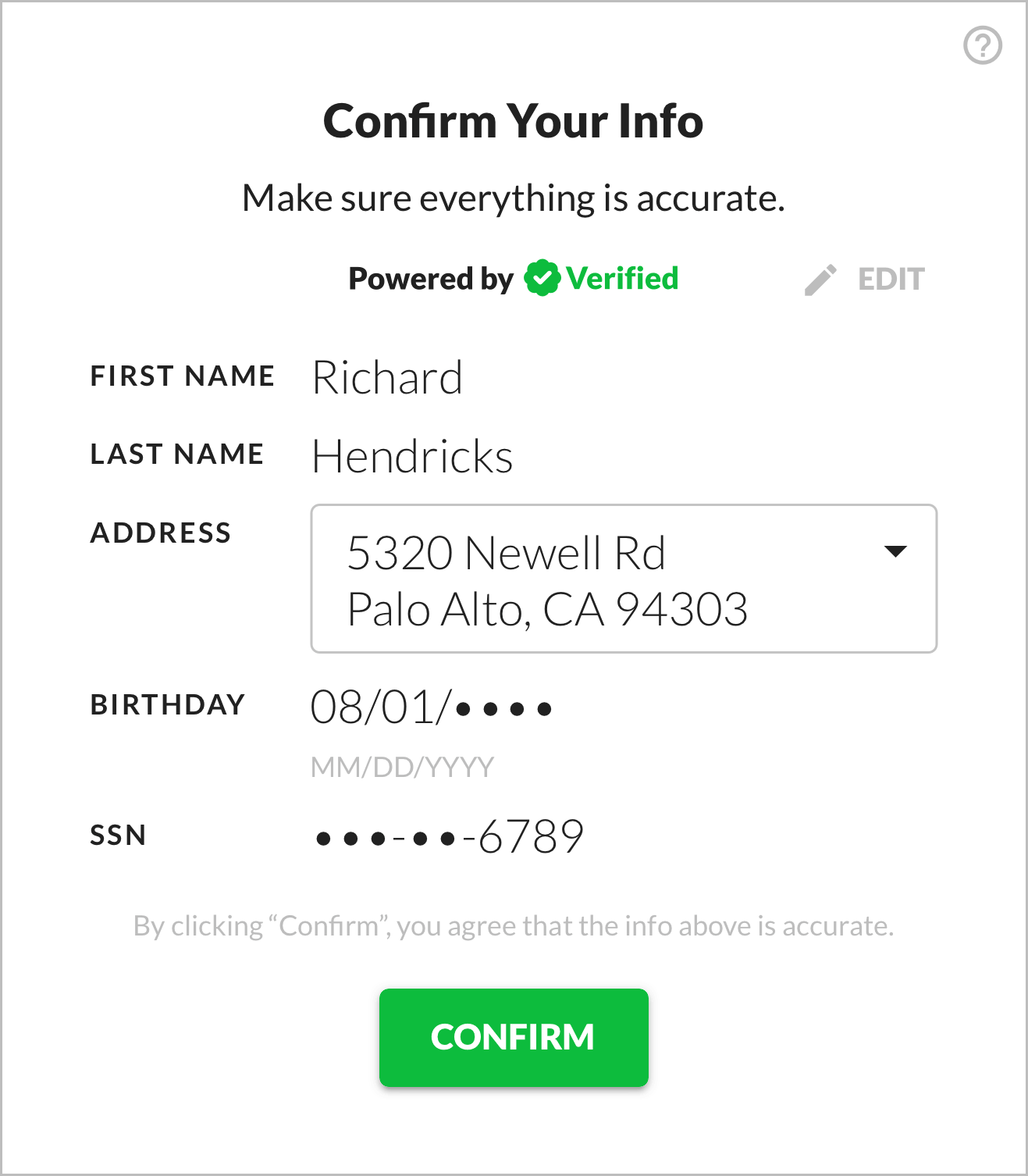
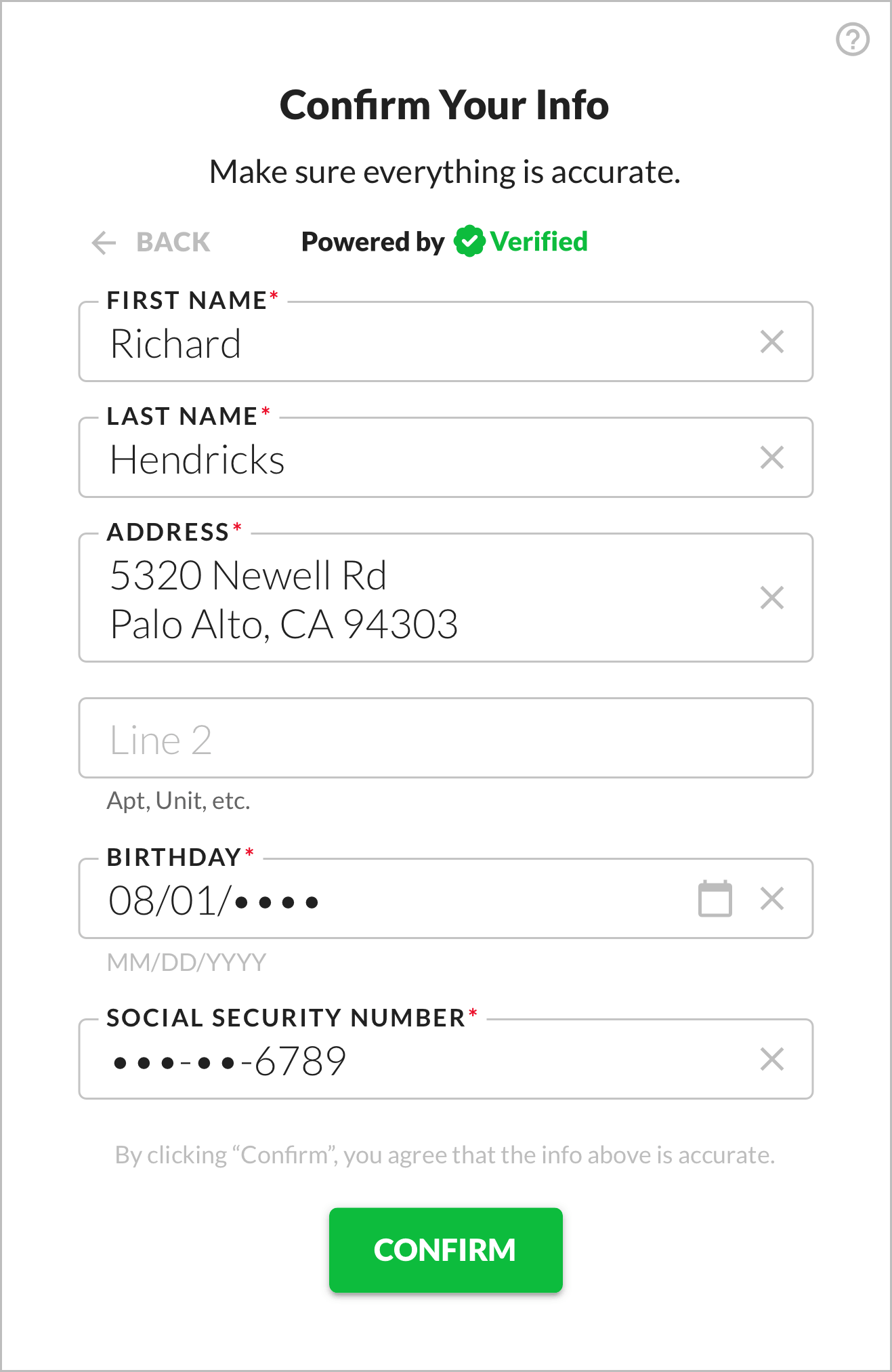
Confirm Your Info
Description
Make sure everything is accurate.
Powered by Verified
- Black and Green variant
"Powered By Verified" Graphic Variants
Powered by Verified
Black and Green:
White and Green:
Black:
White:
Gray:
1-Click Signup powered by Verified
Black and Green:
White and Green:
Black:
White:
Gray:
1-Click Health powered by Verified
Black and Green:
White and Green:
Black:
White:
Gray:
1-Click Login powered by Verified
Black and Green:
White and Green:
Black:
White:
Gray:
1-Click Verify powered by Verified
Black and Green:
White and Green:
Black:
White:
Gray:
1-Click Apply powered by Verified
Black and Green:
White and Green:
Black:
White:
Gray:
1-Click Access powered by Verified
Black and Green:
White and Green:
Black:
White:
Gray:
1-Click AutoFill powered by Verified
Black and Green:
White and Green:
Black:
White:
Gray:
First Name
First Name
Appears in view state.
Last Name
Last Name
Appears in view state.
Address
Address
Appears in view state.
Two lines:
{Address Line 1}, {Address Line 2}{City}, {State} {ZIP Code}
If multiple values are available:
- Dropdown
If only one value is available:
- Static text
Birthday
Birthday
Appears in view state.
- “Birthday” not “Birth Date” because the former is friendlier
- Year digits masked (server side), unless user entered these as input
SSN
SSN
Appears in view state.
- “SSN” not “Social Security Number” for compactness
- First 5 digits masked (server side)
Edit
Edit
Switches from view to edit state.
The entire data display area should be clickable as the Edit button, not just the button itself.
- Muted color
First Name
Appears in edit state.
- Clear ("X") button on right side that appears if there's any value
Last Name
Appears in edit state.
- Clear ("X") button on right side that appears if there's any value
Address
Appears in edit state.
- Uses value selected in dropdown (from view state), if multiple values are available
- Has clear ("X") button on right side that appears if there's any value
- Uses third party service (e.g. Google Places API) to show autofill options when the user types
- Expands to show full value (without Address Line 2), in two lines:
{Address Line 1}, {Address Line 2}{City}, {State} {ZIP Code}
Line 2
- Has value
{Address Line 2}if it exists - Helper:
Apt, Unit, etc.
Birthday
_ _ / _ _ / _ _ _ _
- “Birthday” not “Birth Date” because the former is friendlier
- Helper:
MM/DD/YYYY
- Calendar icon on right opens date picker (which defaults to 08/01/1989)
- Opens numeric keyboard
- Accepts only digits
- Accepts OS autofill
- Validates format
- Auto formats to MM/DD/YYYY (most common US format)
- If starting with value:
- If user starts to edit (by deleting one character), clear entire value
Social Security Number
_ _ _ - _ _ - _ _ _ _
- “Social Security Number” not “SSN” (unlike view state — see above) for clarity
- Opens numeric keyboard
- Accepts only digits
- Validates format
- Auto formats to •••-••-NNNN (most common US format)
- Masks first 5 digits, server side not client side
- If starting with value:
- If user starts to edit (by deleting one character), clear entire value
Accuracy Confirmation
By clicking “Confirm”, you agree that the info above is accurate.
- Muted color
Confirm
Confirm
Submits form with user's info.
- Primary color
 View State ↗️
  Modal State ↗️
  Edit State ↗️






































