API Integration
| Time to Complete | 1-2 hours |
|---|---|
| Time to Test and Deploy | 2-4 hours |
| Skills Required | Make API calls, build UX |
Complete the 1-Click Verify Setup guide before following this API Integration guide.
Please do all development work and testing against our Sandbox environment, which returns mock data. You can use our Production environment when you're ready to go live.
1-Click Verify uses three channels for autofilling and/or verifying a user's phone number, in the following order:
| Order | Channel | Description | User Inputs? | SMS? |
|---|---|---|---|---|
| 1 | Autofill | Autofills a user's verified phone number | No | No |
| 2 | Silent | Silently verifies a phone number the user inputted | Yes
| No |
| 3 | SMS | Verifies a phone number the user inputted by sending them an SMS with a verification code and/or link | Yes
| Yes |
Implementing the 1-Click Verify API is as simple as getting the user's device IP address and then waterfalling across these three channels.
1. Get user's device IP.
Get the user's device IP address (over a cellular connection if possible), which you'll use in step 2, and step 3b. You should do this slightly differently on native mobile vs. web, as described in the sections below.
On native mobile (but not on web), you can and should choose a cellular connection even if the user is on WiFi. Doing this results in much higher success rates, because the autofill and silent channels (which have higher conversion than the SMS channel) only work with device IPs determined over cellular connections.
We provide a native mobile module called VerifiedCellular that makes this easy to do across Android, iOS, and cross platform frameworks.
Native Mobile
Copy the code for the VerifiedCellular native mobile module and paste it into your own projects (across iOS, Android, and/or cross-platform frameworks).
We don't distribute this as a package so that you don't need to introduce any new dependencies. The code is simple and brief.
Call VerifiedCellular.getDeviceIp(). It will return the user's device IP address, determined over a cellular connection:
"::121:2555:0010"
Web
Call GET /1-click/verifications/device-ip client side, from the user's device. It will return the user's device IP address:
{
    "deviceIp": "::121:2555:0010"
}
Unlike most Verified API endpoints, this is a public, unauthenticated endpoint. (Don't use your Verified API key, which you must only use server side.)
You should call this endpoint from the user's device, NOT your server, so that it returns the user's device IP address, which you can use with other endpoints.
We don't recommend determining the user's device IP any other way. You may already have the IP or want to use another method to determine it, but there are many subtleties in determining it correctly and normalizing its format so that it works with other Verified endpoints.
The GET /1-click/verifications/device-ip endpoint handles everything for you, and it's completely free to use, so we strongly recommend using it.
If you aren't able to get the user's device IP, fall back to step 3c.
(Optional) Getting Channel Availability in Advance
You can optionally get channel availability in advance, based on the user's device IP. This isn't necessary because, when you try each channel, we'll respond if the channel isn't available. That only takes about 0.5 seconds, and there's no charge for it. However, if you prefer to check once, upfront, which channels are available, we provide a way to do that:
Call GET /1-click/verifications/channels?deviceIp={deviceIp}, server side, with the user's device IP address from step 1 as the value of the deviceIp query parameter.
This endpoint requires authentication (like most Verified API endpoints and all of the other ones referenced in this guide). You should call it from your server, with your Verified API key.
Never use Verified API keys client side. Only use them server side. Verified API keys allow you to source sensitive data about users, so you must keep them secure. If you use a Verified API key client side, our firewall will block your request, and you'll get this firewall error.
The response body will indicate which channels are available:
{
   "channels": {
        "autofill": {
            "available": true, // = brandApproved && deviceIpEligible
            "brandApproved": true,
            "deviceIpEligible": true
        },
        "silent": {
            "available": true, // = brandApproved && deviceIpEligible
            "brandApproved": true,
            "deviceIpEligible": true
        },
        "sms": {
            "available": true, // = brandApproved, currently
            "brandApproved": true
        },
        // Coming soon
        // "email": {
        //     "available": true
        // }
   }
}
Your implementation logic should follow the rest of this guide based on which channels are available.
2. Try autofill channel.
Call POST /1-click/verifications, setting channel to autofill and deviceIp to the user's device IP address from step 1:
{
    "channel": "autofill",
    "deviceIp": "::121:2555:0010"
}
This endpoint requires authentication (like most Verified API endpoints and all of the other ones referenced in this guide). You should call it from your server, with your Verified API key.
Never use Verified API keys client side. Only use them server side. Verified API keys allow you to source sensitive data about users, so you must keep them secure. If you use a Verified API key client side, our firewall will block your request, and you'll get this firewall error.
This will return an HTTP 302 redirect and a Location header with a URL value. Pass this URL to your client, on the user's device. You should handle this slightly differently on native mobile vs. web, as described in the sections below.
Native Mobile
Call VerifiedCellular.followRedirects(url). This will follow all redirects over a cellular connection.
Web
Fetch the URL, headlessly, setting redirect to "follow" to follow all redirects.
You must follow redirects on the user's device, not on your server. The autofill and silent channels rely on redirects being followed on the same device whose deviceIp you sent to POST /1-click/verifications, so following them server side will cause an error.
If the autofill channel succeeds, the response body will contain the user's verified phone number — like magic! You're done.
{
    "uuid": "6232bdb2-5b92-405a-bf39-6147aef70ac1",
    "phone": "+12125550010",
    "channel": "autofill",
    "status": "verified",
    "verified": true,
    "createdAt": 1760053690000,
    "expiresAt": 1760053990000,
    "attemptsRemaining": 3
}
We use autofill and verify the user's phone number directly from the SIM/eSIM in their device, without any need for user input or an SMS verification code. It's both far easier for the user and far more secure.
3. (if necessary) Fall back to silent channel.
If the autofill channel isn't available or fails, fall back to the silent channel. For this channel, the user will have to input their phone number, but they won't have to receive an SMS or use a verification code or link.
a. Prompt user for phone number.
Currently, we only support US mobile phone numbers. You'll need to pass these to our API in E.164 format. This is the +1 country code with a 10-digit subscriber code appended to it, for example +12125550010.
We recommend using a phone number input that auto submits when the user enters 10 digits. (See the Phone screen of the 1-Click Signup User Experience guide for full details.)
b. Try silent channel.
Call POST /1-click/verifications, setting channel to silent, deviceIp to the user's device IP address from step 1, and phone to the user's phone number from step 3a:
{
    "channel": "silent",
    "deviceIp": "::121:2555:0010",
    "phone": "+12125550010"
}
This will return an HTTP 302 redirect and a Location header with a URL value. Pass this URL to your client, on the user's device. You should handle this slightly differently on native mobile vs. web, as described in the sections below.
Native Mobile
Call VerifiedCellular.followRedirects(url). This will follow all redirects over a cellular connection.
Web
Fetch the URL, headlessly, setting redirect to "follow" to follow all redirects.
You must follow redirects on the user's device, not on your server. The autofill and silent channels rely on redirects being followed on the same device whose deviceIp you sent to POST /1-click/verifications, so following them server side will cause an error.
If the silent channel succeeds, the response body will contain the user's verified phone number — like magic! You're done.
{
    "uuid": "6232bdb2-5b92-405a-bf39-6147aef70ac1",
    "phone": "+12125550010",
    "channel": "autofill",
    "status": "verified",
    "verified": true,
    "createdAt": 1760053690000,
    "expiresAt": 1760053990000,
    "attemptsRemaining": 3
}
We verify the user's phone number directly with the SIM/eSIM in their device, without any need for an SMS verification code or link. It's both far easier for the user and far more secure.
c. (if necessary) Fall back to SMS channel.
If the silent channel isn't available or fails, fall back to the SMS channel. For this channel, the user will have to input their phone number, receive an SMS, and use a verification code or link.
i. Start verification flow.
Call POST /1-click/verifications, setting channel to sms and phone to the user's phone number from step 3a:
{
    "channel": "sms",
    "phone": "+12125550010"
}
The response body will contain a uuid that you'll use in the next step:
{
    "uuid": "f5251850-496c-48cf-a4bd-d9d5ace22689",
    "phone": "+12125550010",
    "channel": "sms",
    "format": "linkAndCode",
    "status": "pending",
    "verified": false,
    "createdAt": 1760053695000,
    "expiresAt": 1760053995000,
    "attemptsRemaining": 3
}
ii. Deliver verification message.
Call POST /1-click/verifications/{uuid}/deliver with the uuid from the previous step. This will send a verification SMS to the user's phone number.
You can optionally specify a message format (which defaults to code if not included). If the format includes a link — that is, if it's link, codeAndLink, or linkAndCode — you can also specify redirectUrl and redirectUserAfter, which default to the redirect URL and redirect user after brand settings.
{
    format?: "linkAndCode", // defaults to code
    redirectUrl?: "https://hooli.com/verified/1-click-verify", // only relevant if link format is included
    redirectUserAfter?: "phoneVerification" // only relevant if link format is included
}
The content of the verification SMS depends on the format:
| Format | format | SMS Template | SMS Example |
|---|---|---|---|
| Code Default | code |
|
|
| Link | link |
|
|
| Code and Link | codeAndLink |
|
|
| Link and Code | linkAndCode |
|
|
The response body will indicate that the message is being sent:
{
    "uuid": "f5251850-496c-48cf-a4bd-d9d5ace22689",
    "phone": "+12125550010",
    "channel": "sms",
    "format": "linkAndCode",
    "status": "sending",
    "verified": false,
    "createdAt": 1760053695000,
    "expiresAt": 1760053995000,
    "attemptsRemaining": 3
}
iii. Finish verification flow.
How to finish the flow depends on whether a code or link is used.
Code
A. Prompt user for verification code.
We recommend using a 6 separate single digit inputs that auto submit when the user enters 6 digits. (See the Verification Code screen of the 1-Click Signup User Experience guide for full details.)
B. Verify verification code.
Call POST /1-click/verifications/{uuid}/verify with the uuid from the earlier API response bodies, including what the user entered in the previous step as code:
{
    "code": "111111"
}
This will check the user's input against the verification code for this verification flow. The response body will indicate whether or not the check succeeds in the verified attribute:
{
    "uuid": "f5251850-496c-48cf-a4bd-d9d5ace22689",
    "phone": "+12125550010",
    "channel": "sms",
    "format": "linkAndCode",
    "status": "verified",
    "verified": true,
    "createdAt": 1760053695000,
    "expiresAt": 1760053995000,
    "deliveredAt": 1760053699054,
    "verifiedAt": 1760053705000,
    "attemptsRemaining": 2
}
Link
If you pass the user to an integrated 1-Click Signup/Health flow on your side, that automatically confirms the user's phone is verified — as long as you include the uuid from previous API response bodies as verificationUuid in the request body of POST /1-click. But if you don't pass the user to such a flow, you need to separately confirm the user's phone is verified. See below for how to do this (and why it's necessary).
A. Parse URL parameter.
When a user completes verifying with a verification link, we redirect them to the redirect URL you define via the redirect URL brand setting (or redirectUrl API input).
We append a URL parameter that depends on what you set for the redirect user after brand setting (or redirectUserAfter API input). When it's set to "1-Click Verify" ("phoneVerification"), we redirect the user after we verify their phone number and append a verificationUuid parameter, which lets you check that the user's phone was verified:
{redirectUrl}?verificationUuid={verificationUuid}

https://hooli.com/verified/1-click-verify?verificationUuid=68b7bf30-1a2d-4fcc-a2c8-be7de29e5b19
Parse the value of this verificationUuid parameter, which you'll use in the next step.
In the Sandbox environment, we also append an env=sandbox parameter (for example ...?verificationUuid={verificationUuid}&env=sandbox). This lets you tell test requests apart from live ones when you use the same redirect URL in both environments.
A user arriving at your redirect URL with a verificationUuid URL parameter is NOT a technical guarantee that the user's phone is verified! If your use case needs such a guarantee, you must confirm the phone is verified using step 3ciiiB and step 3ciiiC.
Why is this the case?
A bad actor can figure out what the redirect URL is (for example by simply going through the flow themselves) and then append a verificationUuid parameter with a random UUID value.
So, to confirm the user's phone is verified, you need to use the value of the verificationUuid parameter to call GET /1-click/verifications/{uuid} (see step 3ciiiB) and then check verified in the response (see step 3ciiiC). This can't be spoofed, because a bad actor doesn't have any way of correctly guessing a valid UUID value for verificationUuid.
B. Get verification status.
Pass the verificationUuid, which you parsed in the previous step, to your server. The server should use your Verified API key to call GET /1-click/verifications/{uuid}:
GET /1-click/verifications/{uuid}
The endpoint you should use here is GET /1-click/verifications, which is different than GET /1-click.
The response body will be a 1ClickVerificationEntity:
{
    ...1ClickVerificationEntity
}
{
    "uuid": "9327ddbf-a018-4a34-ad16-2c37ceb4d380",
    "phone": "+12125550010",
    "channel": "sms",
    "format": "link",
    "status": "verified",
    "verified": true,
    "createdAt": 1760053695000,
    "expiresAt": 1760053995000,
    "deliveredAt": 1760053699054,
    "verifiedAt": 1760053705000,
    "attemptsRemaining": 2
}
C. Check verified.
Check that verified is true (or, equivalently, that status is "verified"), which means the user's phone is verified. Otherwise, it may be spoofed.
(optional) Get verification details.
The verification details are included in the response bodies of other 1-Click Verify endpoints. But, if you ever want to retrieve these details again, you can do so by calling GET /1-click/verifications/{uuid} with the uuid from the previous steps.
The response body will be a 1ClickVerificationEntity:
{
    "uuid": "f5251850-496c-48cf-a4bd-d9d5ace22689",
    "phone": "+12125550010",
    "channel": "sms",
    "format": "link",
    "status": "verified",
    "createdAt": 1760053695000,
    "expiresAt": 1760053995000,
    "verifiedAt": 1760053705000
}
Handle Errors
To ensure your integration is robust, handle all of the 1-Click Verify errors.
Many errors can be handled simply by starting a new 1-Click Verify flow. If an error indicates that a particular channel failed, and there are one or more other channels still available, you should fall back to the other channel(s), as indicated in the guide above.
Satisfy Compliance Requirements
Autofilling phone numbers, verifying phone numbers, and sending SMS are subject to strict regulations and carrier review in the US. You must satisfy the following compliance requirements for us to approve your integration for Production access.
Autofill and Silent Channels
Before you call POST /1-click/verifications (for step 2 and step 3b), you must have the user agree to your terms, and those terms must include this 1-Click Verify autofill channel consent language:
You authorize your wireless carrier to use or disclose information about your account and your wireless device, if available, to
{Brand Name}or its service providers for the duration of your business relationship, solely to help us identify you or your wireless device and to prevent fraud. See our Privacy Policy to see how we treat your data.
- Replace
{Brand Name}with your brand name.
This language has been approved by all three major carriers in the US: Verizon, T-Mobile, and AT&T. It's simply not feasible to get approval from all of them for changes to the language. Therefore, we cannot approve your integration unless you use exactly the language above.
For example, as our User Experience guide describes here, you can use a button with language that indicates that the user agrees to your terms by continuing:
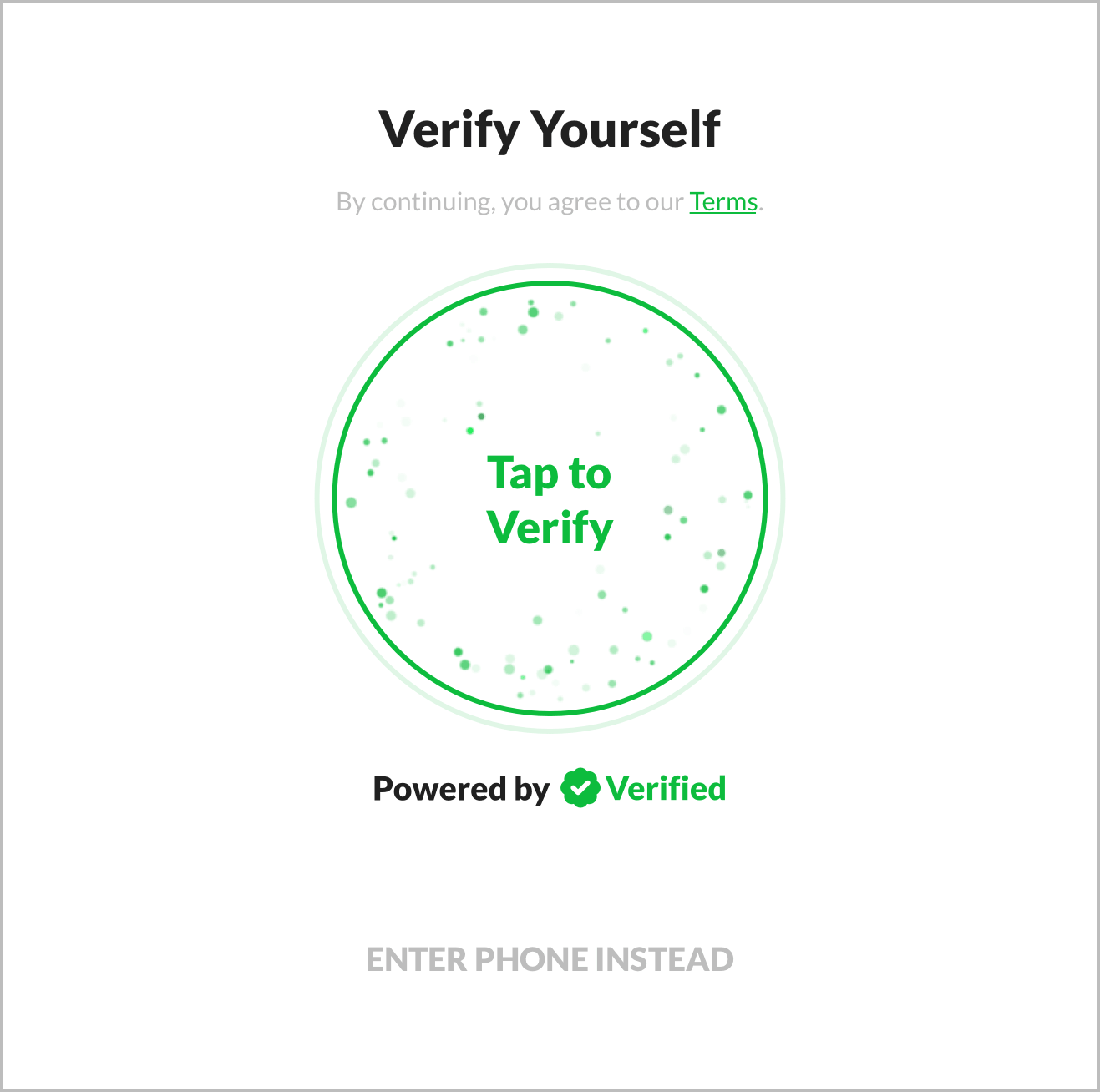 Terms consent language, button, and the green variant of the Powered by Verified graphic
If you have earlier steps in your flow, you can use one of those as the trigger instead of using a dedicated button. For example, if you start by asking the user to enter their email, you can include the terms consent language on that step and then trigger verified phone autofill as soon they enter their email.
SMS Channel
Before you call POST /1-click/verifications/{uuid}/deliver (step 3cii), you must include this 1-Click Verify SMS channel consent language:
I authorize Verified to send me SMS verification texts at the number provided. Msg & Data rates may apply.
- Link "Verified" to https://verified.inc and make it underlined and a different color than the rest of the text (so the user knows it's a link).
- Make this visible to the user, somewhere on the page, before you call
POST /1-click/verifications/{uuid}/deliver.
See our Demo for an example of this.
Go Live!
When you're ready to go live, you made need to request approval for Production access, depending on how you're using other Verified products:
- Go to the Brand Details page for your brand in the Verified Dashboard.
- Click the Production tab in the upper right, and make sure your brand settings are configured as you intend them to be.
- Click the Request Approval button under the API Keys section.
- Complete the steps listed in the dialog.
- Click the Submit Request button.
Swap Sandbox for Production
Once you have Production access, just swap Sandbox for Production:
- Swap your Sandbox API key for your Production API key.
- Swap the Sandbox base URL for the Production base URL.
Then you'll be live with 1-Click Verify! ✅